
Choose the right download
Open the DWZVPN download page and select your operating system. Check the architecture and package format. Use an official package address and review the file information before you install.
Install and open the app
Run the installer for your platform and follow its prompts. Operating systems may ask permission to add a VPN configuration or network extension. Read the request and confirm that it names the software you intended to install.
Choose a location
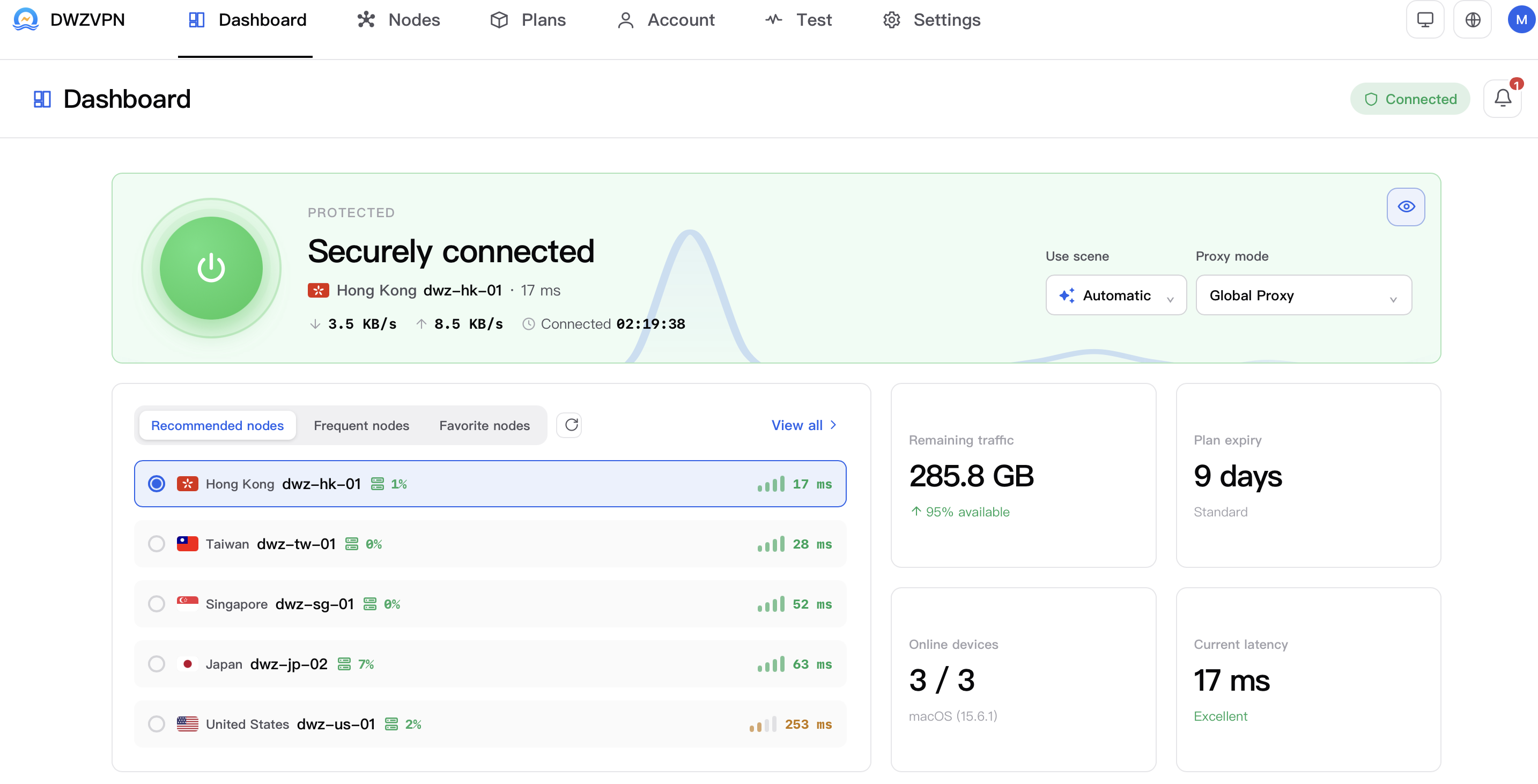
Use the app to inspect available locations and choose one appropriate for your connection. Location and load information can change. A nearby server is often a sensible starting point for testing.
Check the connection status
Connect and wait for the application to confirm the result. Review the selected location, remaining data and access period. A website screenshot is a product illustration, not evidence that your current browser is protected.
When something needs attention
If you cannot connect, check your network, package version and account allowance. Try another available location. Contact support with the platform, app version and a description of the error; never send your password.